Windows 11 · File Explorer shell extension
Right Click PNG
Convert images to PNG from the right-click menu. No network calls, no detours. Adds Convert to PNG and Copy as PNG to the File Explorer context menu, so the round-trip through an online converter stops happening.
The problem
The .webp that won't paste
Some images just don't download and paste. You save a .webp from the web, try to drop it into Teams or Figma, and the app rejects it. You save a .heic from your phone, and your image editor refuses to open it.
The workaround is always the same: find an online converter, upload the file, download a PNG, move it to where you actually needed it.
Right Click PNG replaces that detour with a right-click.
What it does
Two verbs where you already are
Right-click any .webp, .avif, .heic, .heif, .jpg, .jpeg, .bmp, .tif, .tiff or .gif in File Explorer. No separate app to open.
Convert to PNG
Saves a PNG next to the original, same base name, new extension.
Copy as PNG
Sends PNG bytes to the clipboard, ready to paste into Teams, Slack, Discord, Figma, Photoshop, Outlook, Word, PowerPoint, OneNote, Paint or Snipping Tool. Works on a .png too, for the paste without opening the file.
The whole selection at once
Multi-select files and the right-click action runs against the whole selection in one shot, with a single summary toast when the batch completes.
Two toggles, one window
A branded settings window with a dark title bar, opened from the Start menu or from the right-click menu itself. Confirm-before-overwrite lives here. Changes apply on the next right-click, no reboot.
JPEG when you need it
Convert to JPEG and Copy as JPEG are both there, hidden behind a settings toggle for anyone who needs them.
See it work
Right there in File Explorer
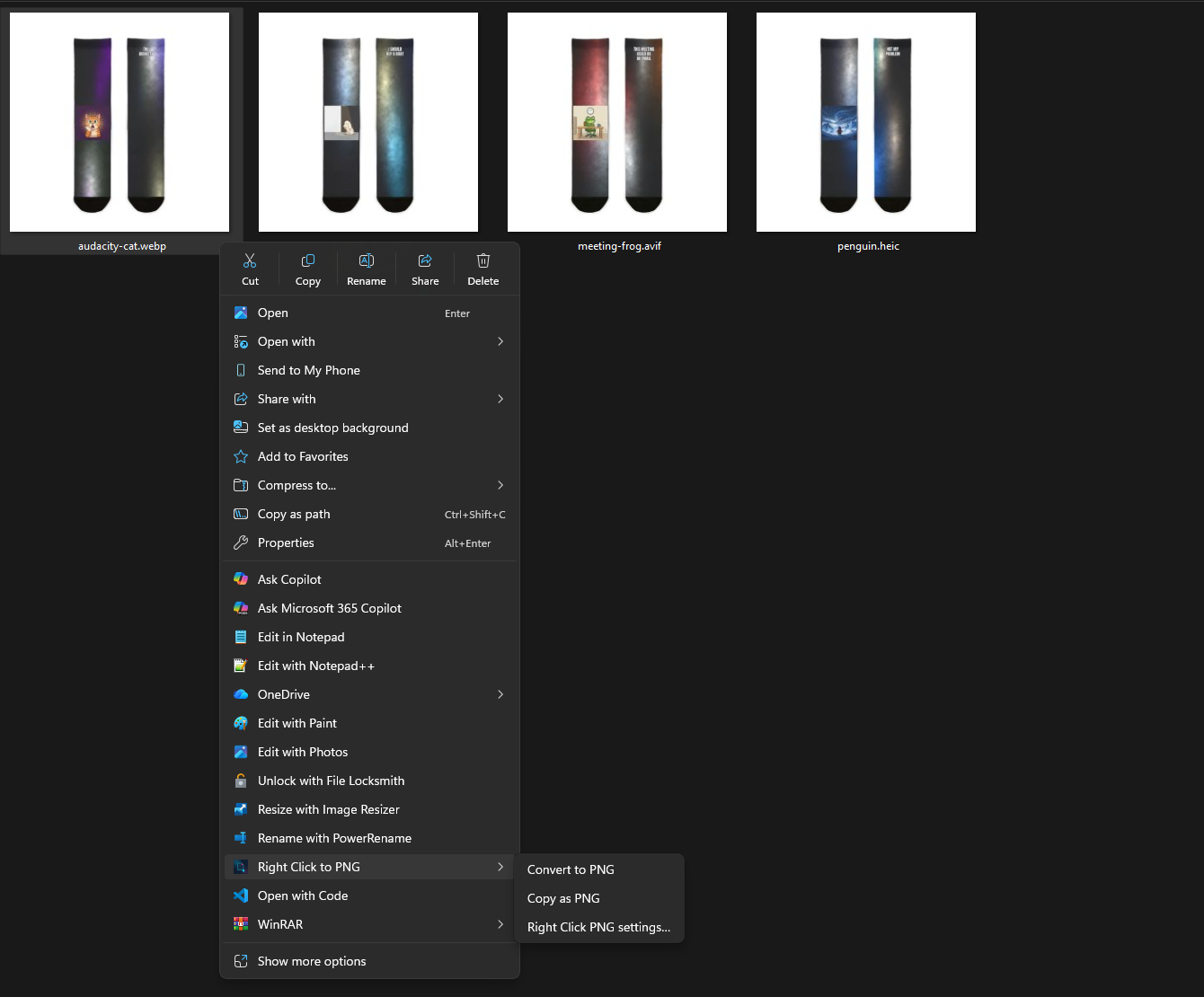
.webp in File Explorer: Convert to PNG and Copy as PNG, no app to open first.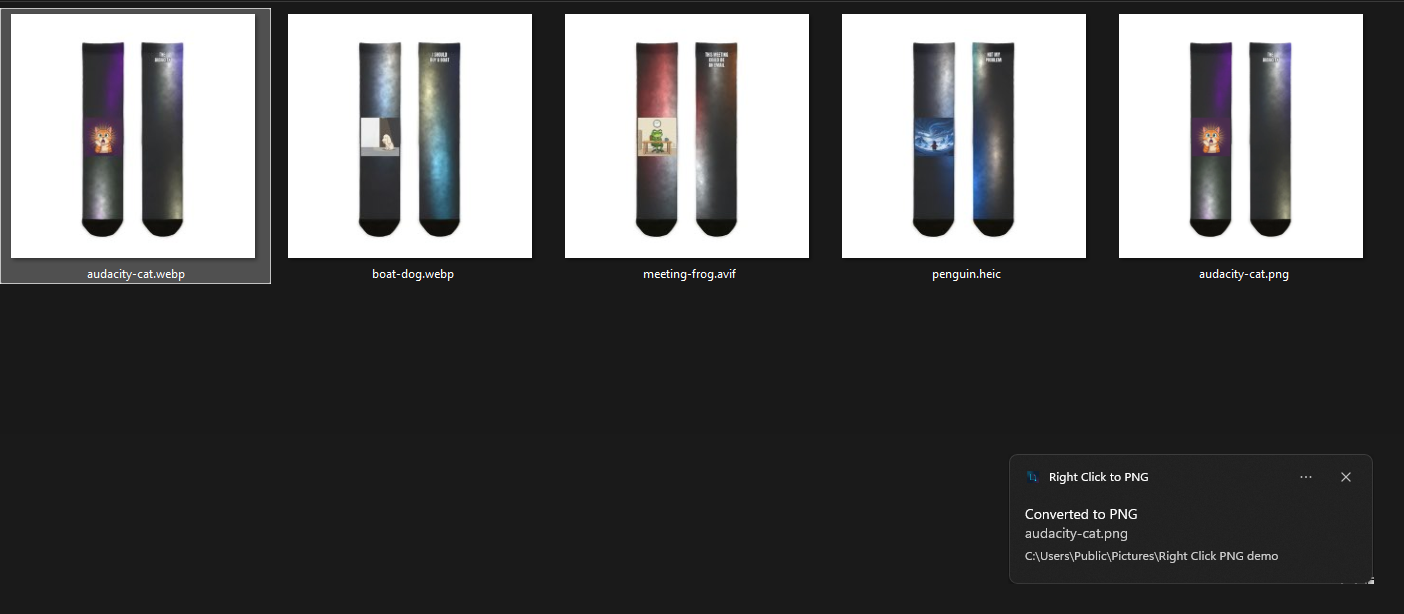
.png sits next to the original in the same folder.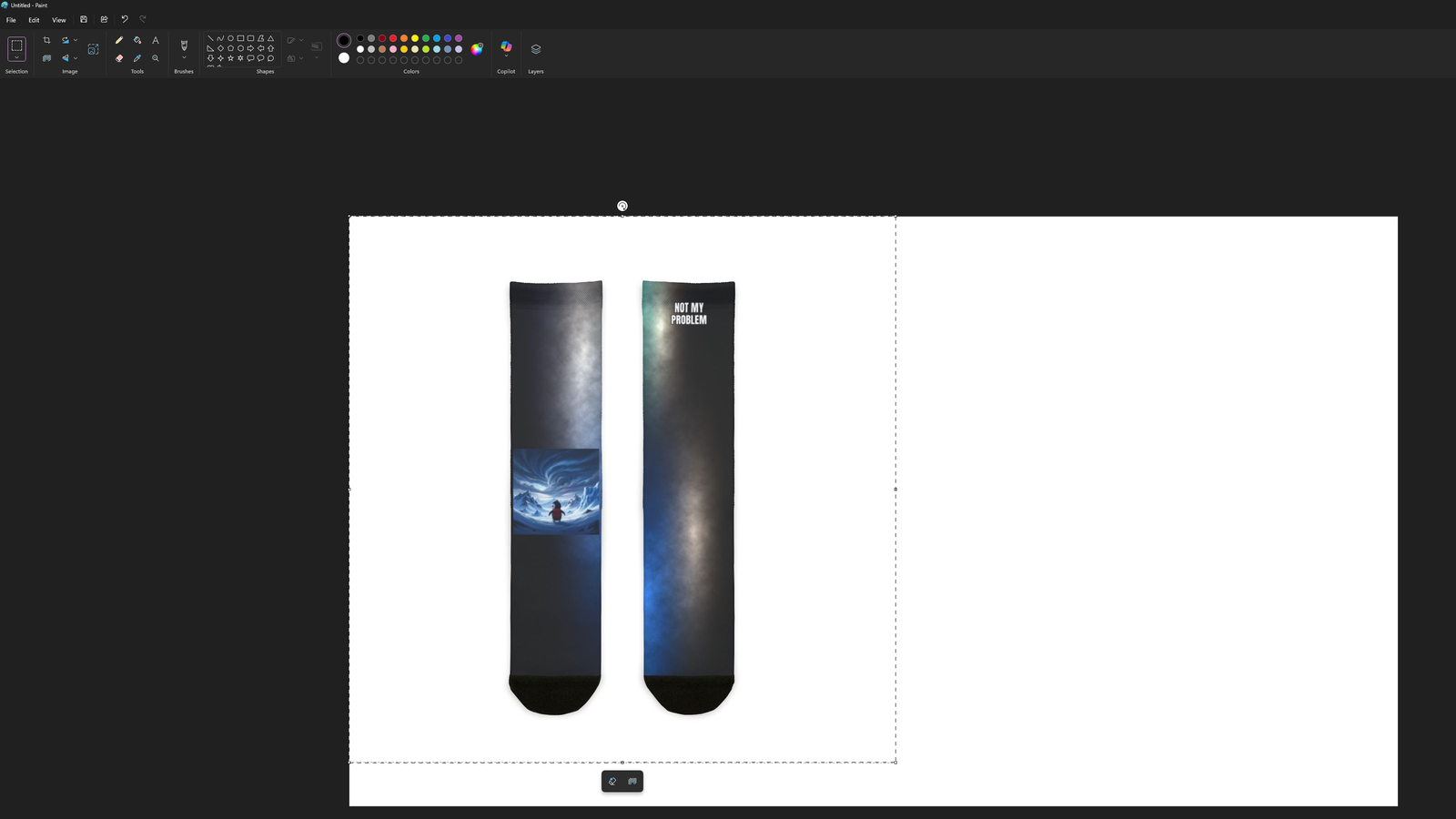
.heic lands in Paint.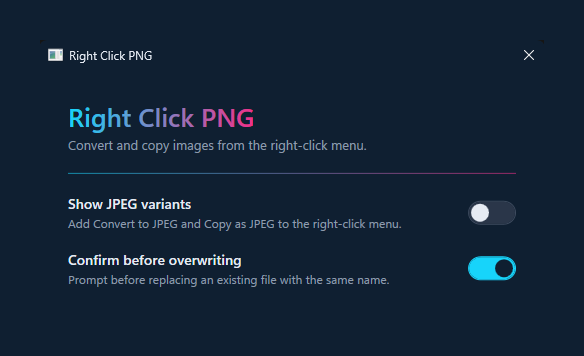
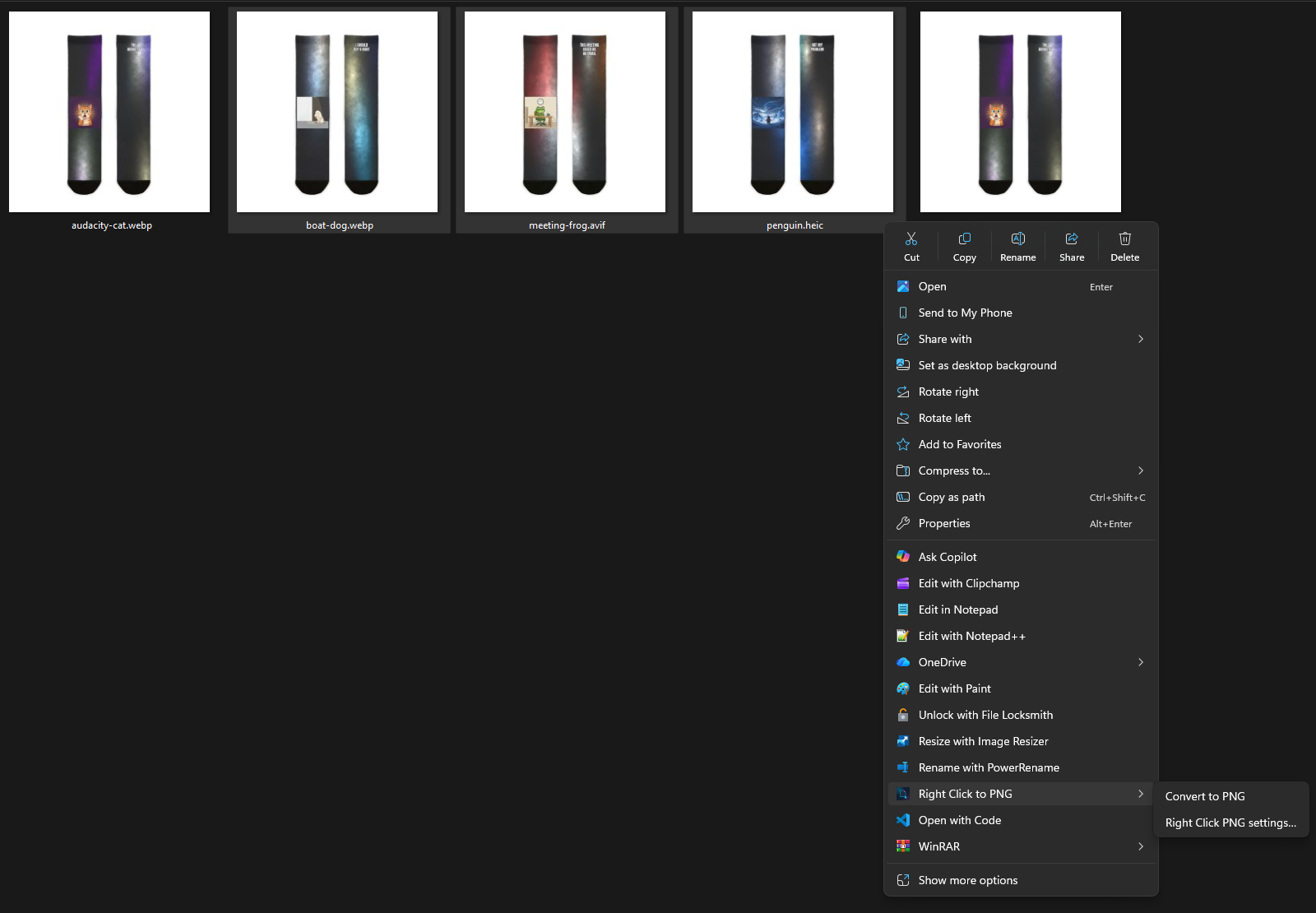
.webp, .avif and .heic. With several files selected, the menu offers Convert.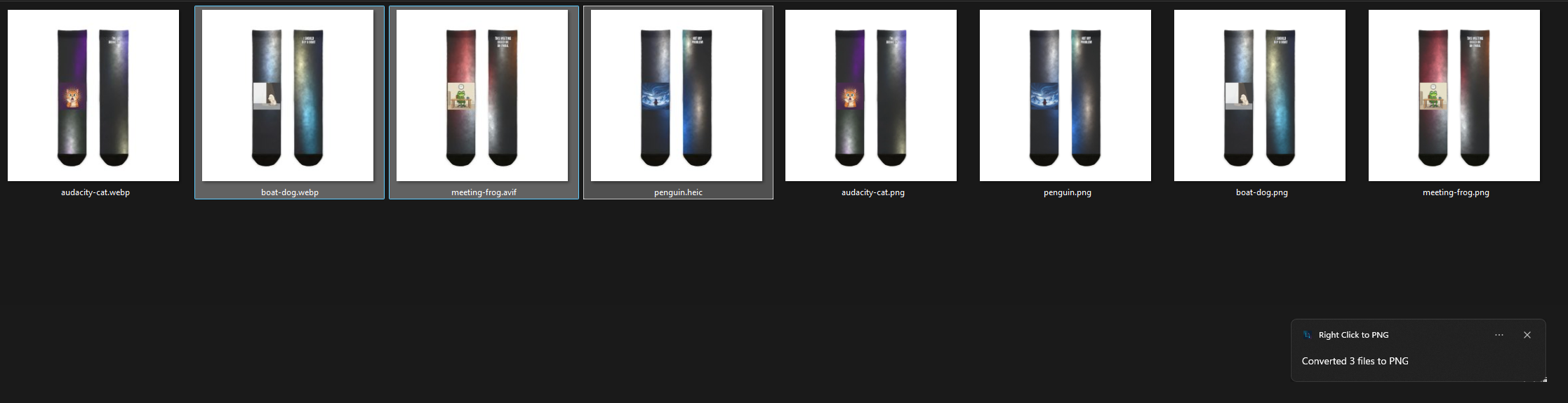
.png beside its original.How it's built
Idea to Microsoft Store in 24 hours
Built end to end with Vibe Cartographer, from the first scoping question to a signed MSIX approved on the Store. Shipped 2026-04-22.
The shell extension
A Win32 COM server that File Explorer hosts directly, the same way it hosts Windows' own right-click verbs. It stays minimal on purpose: read the selection, read settings, launch the engine, show the toast.
The engine
A standalone converter, called once per invocation. No runtime warm-up. Decoding runs on bundled libwebp, libavif, libheif, libspng and libjpeg-turbo; BMP, GIF and TIFF are read by hand-rolled C#.
One package
Signs and packages both, and registers the COM classes and file-type associations. The Store install auto-updates and uninstalls cleanly.
The engine and the shell extension are split across a process boundary on purpose. Explorer loads the extension as a DLL, so a decoder that crashes on a malformed file takes down a short-lived engine process, never Explorer. The extension sees a non-zero exit code and shows an error toast.
Trust
Offline by design
Disconnect, and it all still works.
Reach
Where it ended up
Every Microsoft Store install since launch, plotted by country. Dot area is proportional to install count.