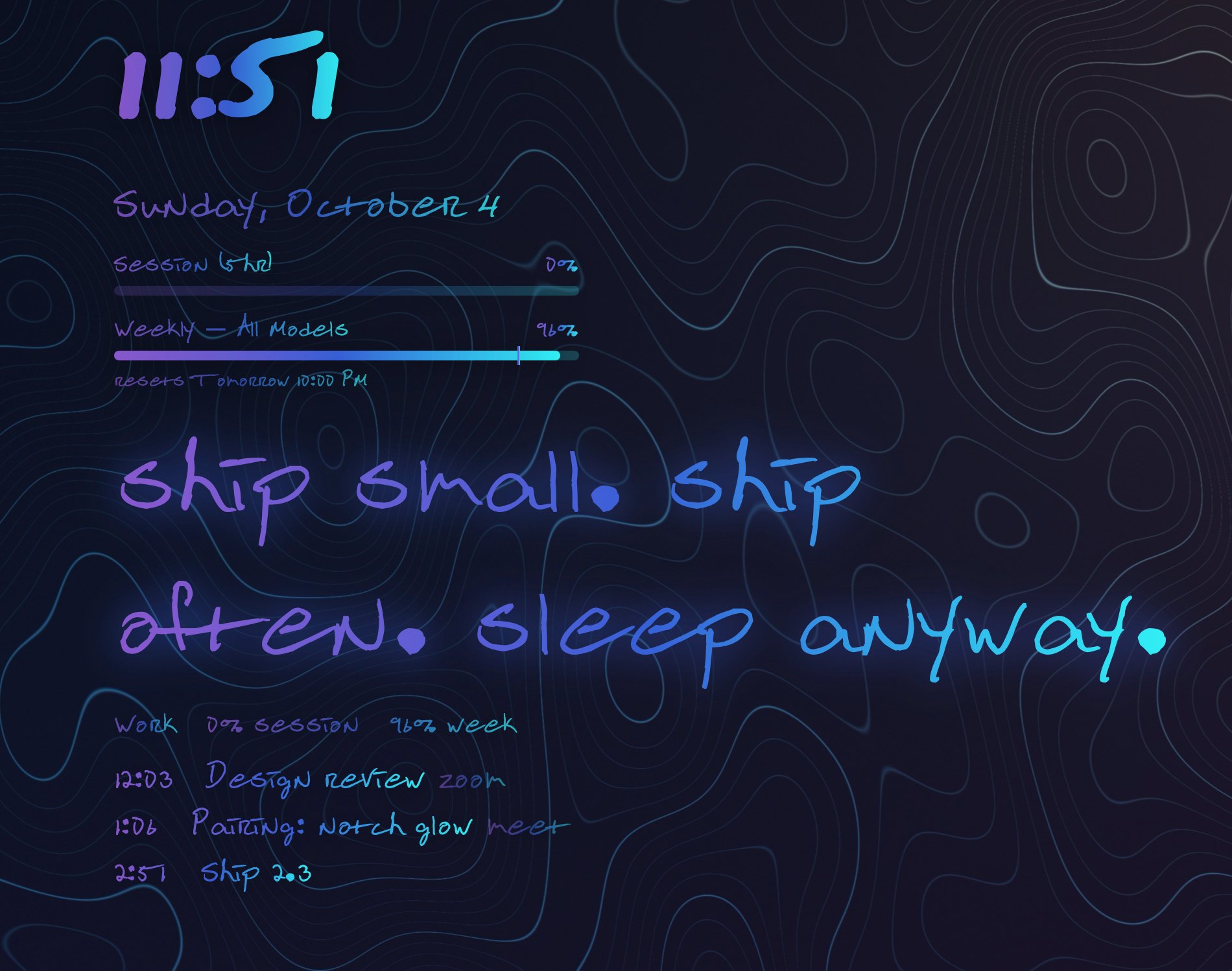
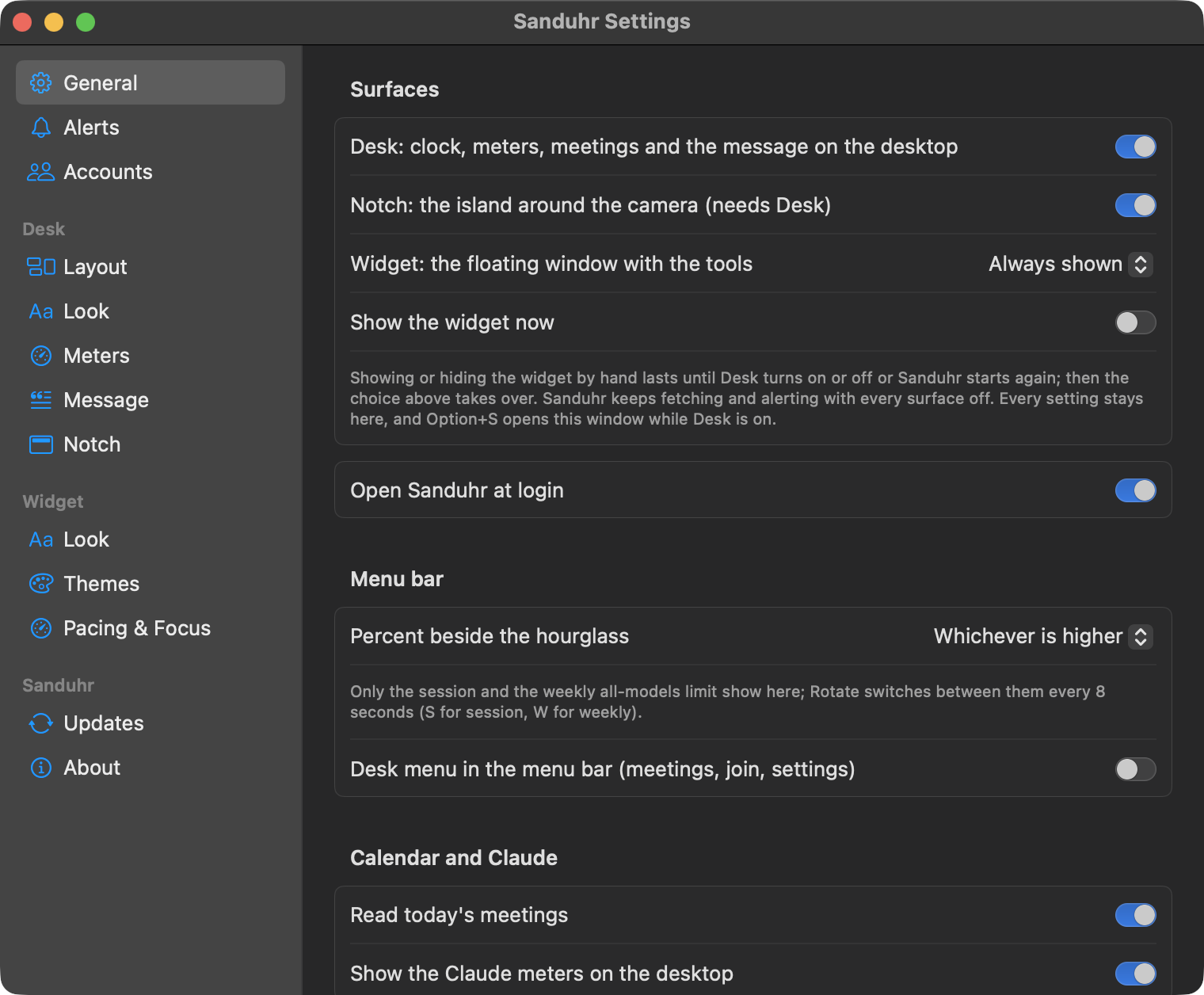
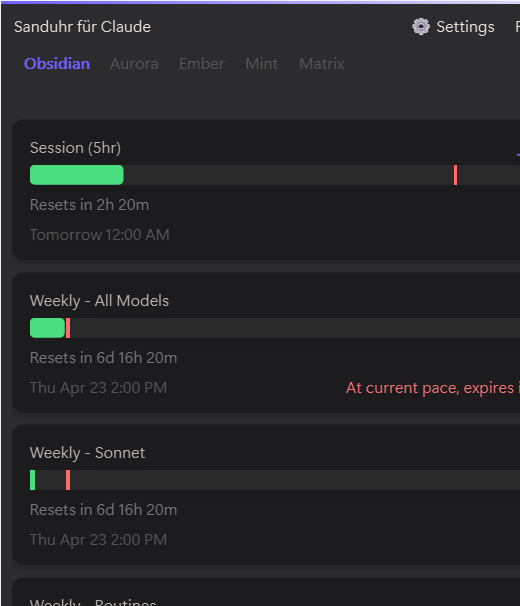
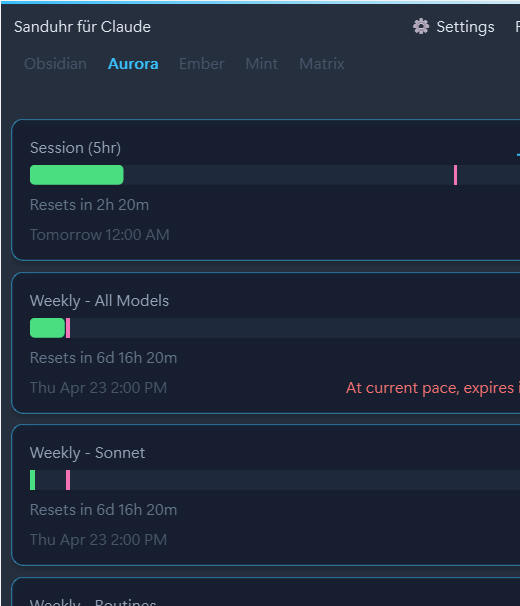
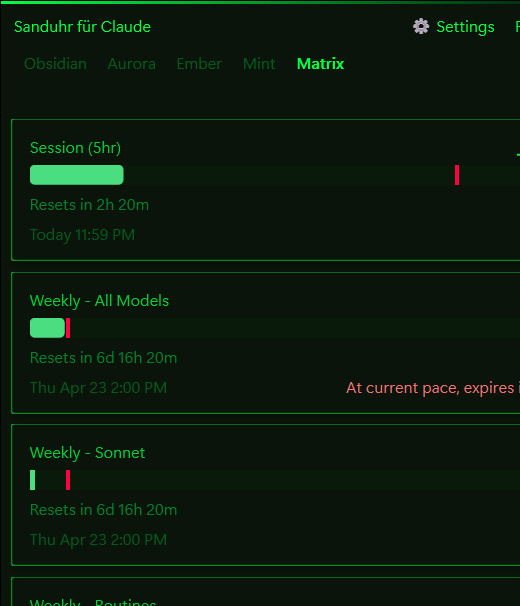
A fresh install starts with Desk on and your meters already there. The widget becomes the toolbox you open for the deep tools.
Meters on your desktop
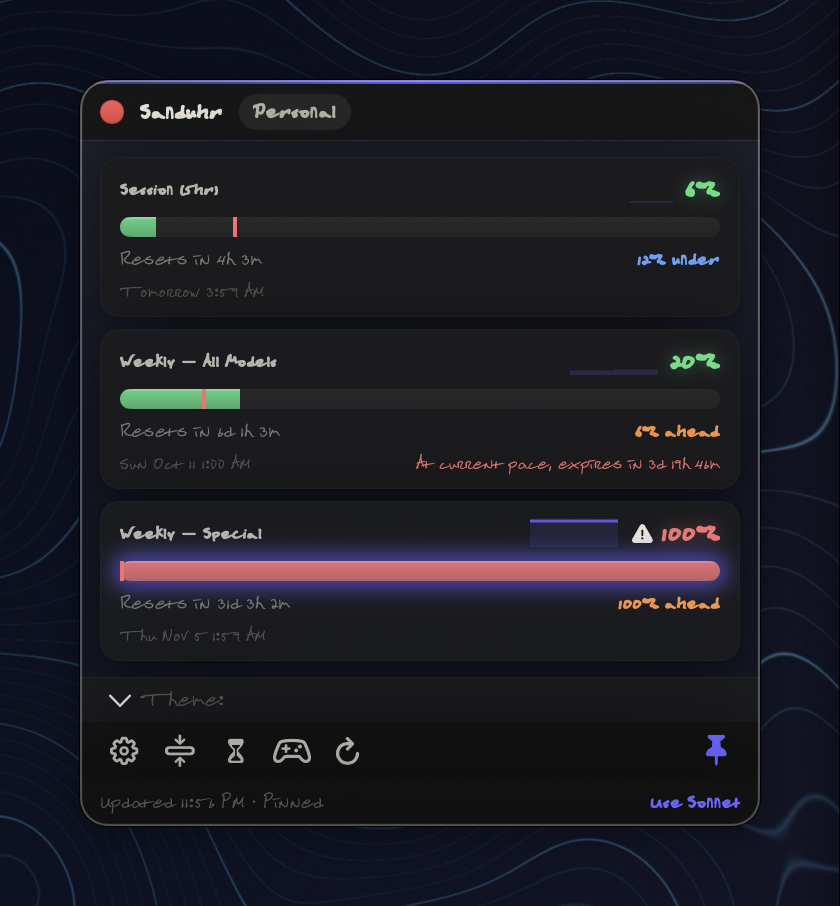
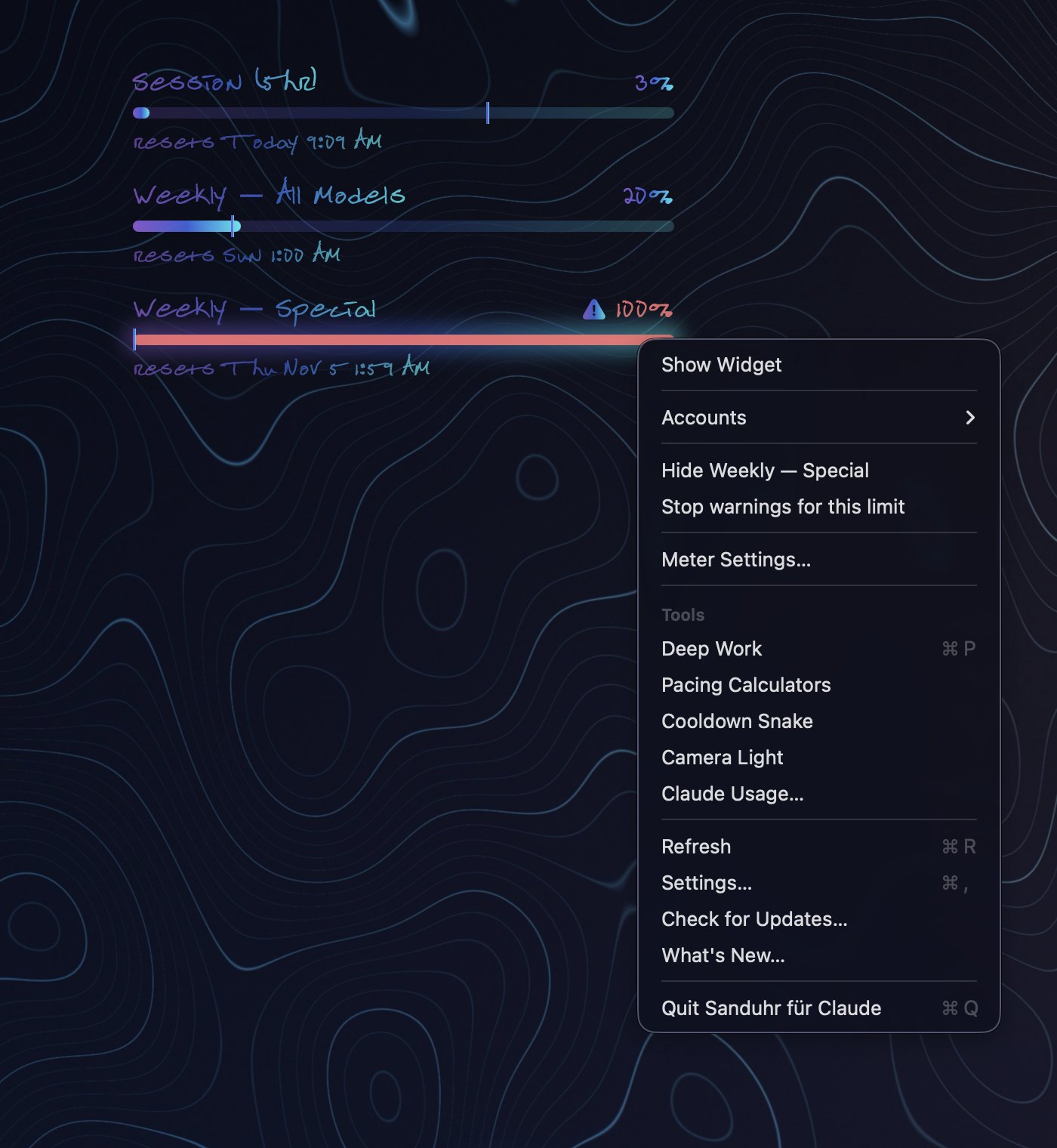
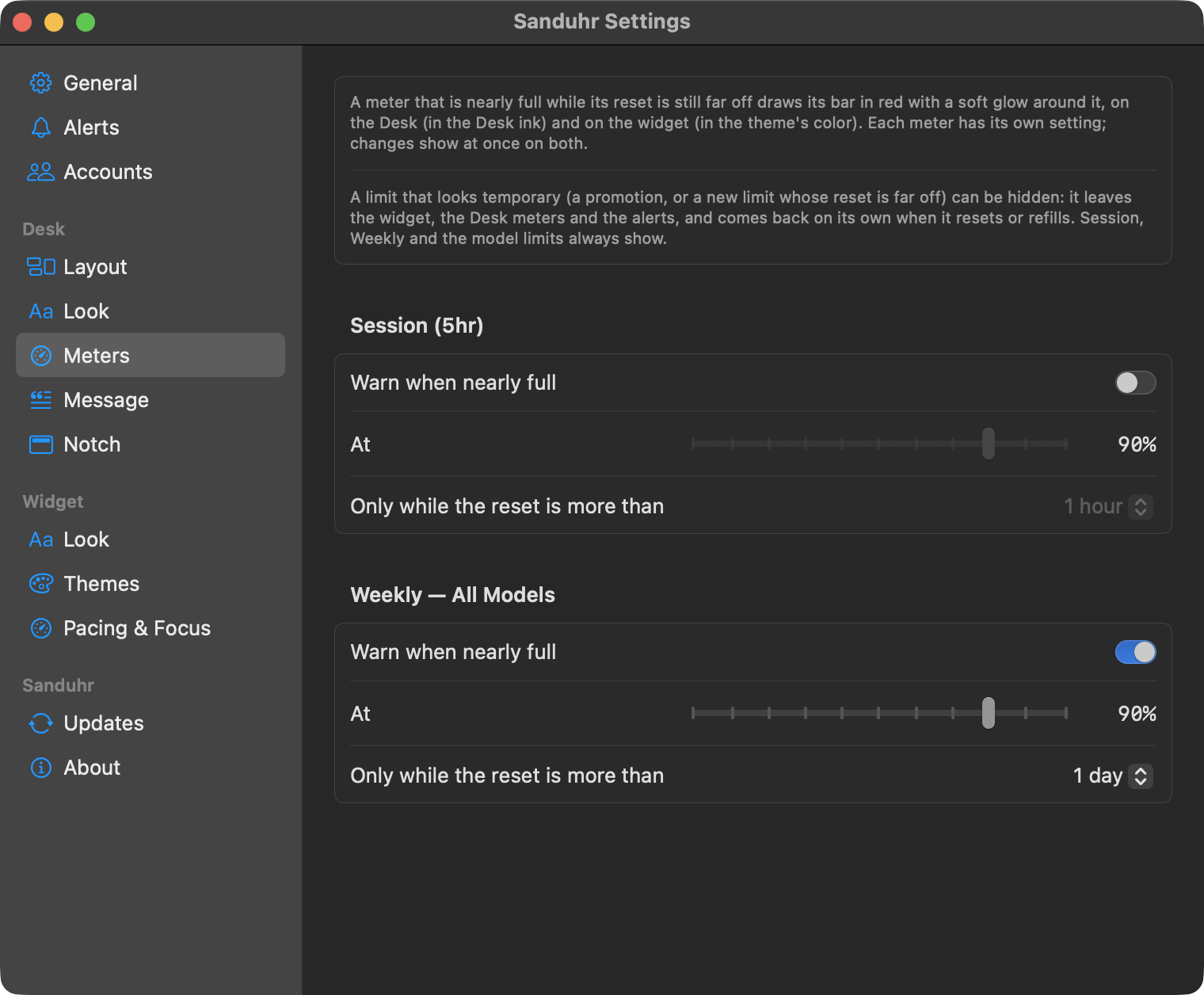
Your session and weekly limits drawn as bars under your windows, each with a pace tick and its reset time, in any corner. A limit that's nearly full with plenty of time left turns red, and you set how full and how far from a reset, per limit. A two-finger click on a meter opens that limit's own menu.
Sign in inside the app
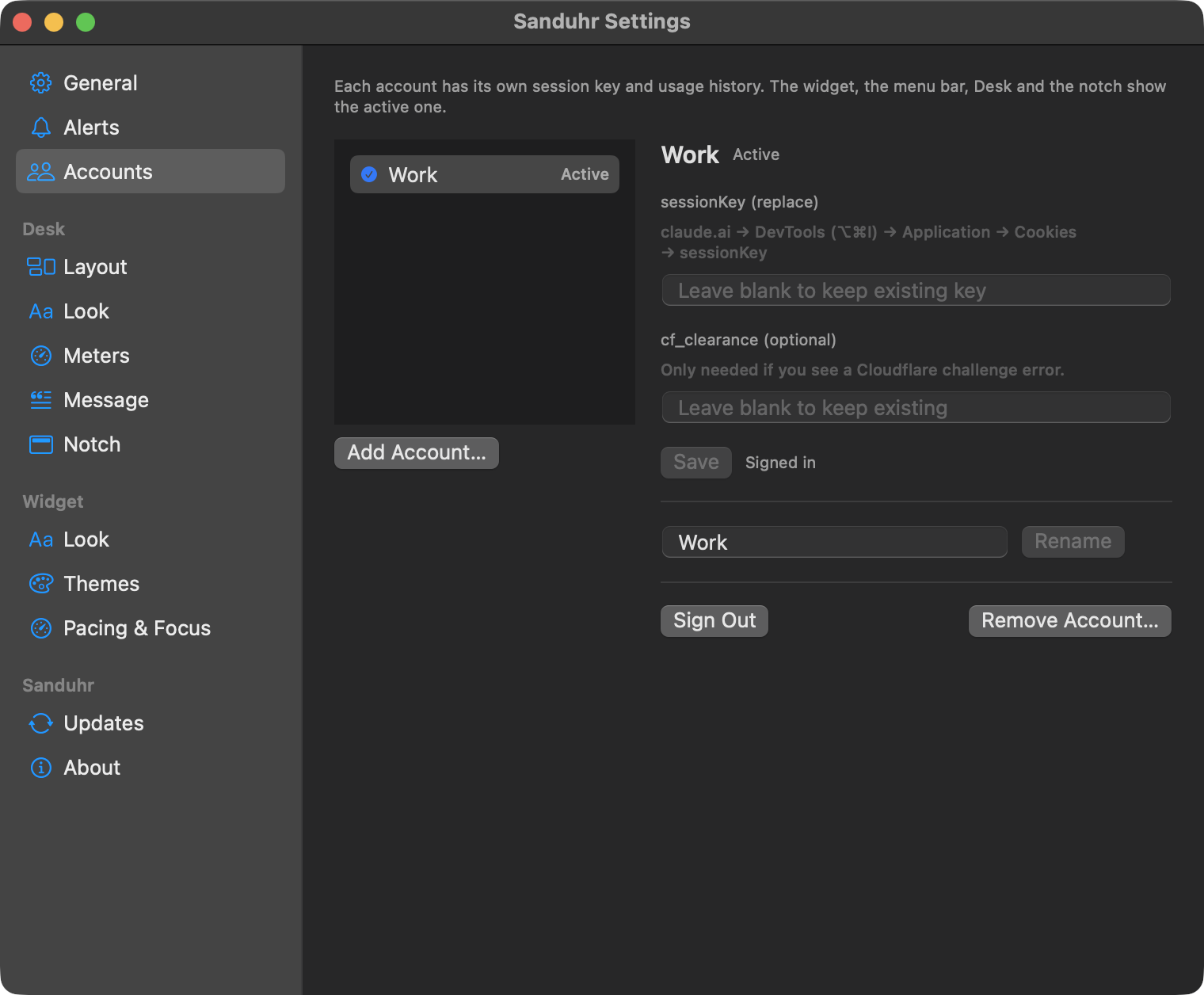
Sign in to claude.ai in a Sanduhr window and your session key is saved the moment you're in: no DevTools, no copying cookies. The window keeps nothing once it closes. Accounts made with Google sign in through your browser and paste the key, because Google refuses sign-in inside apps.
More than one account
Add each Claude login under a name, like Work or Team, and switch from the widget's account chip, any Sanduhr menu, or the account name on Desk. Each account keeps its own history, so the sparklines never mix. Follow the account I'm using, off by default, switches for you when the signal is clear.
Limits that come and go
A limit that looks temporary, like a promotion, can be hidden from that limit's two-finger menu, and it comes back on its own when it resets or refills. Session, weekly and the model limits always show. The menu bar shows session, weekly, whichever is higher, or rotates between them.
The rest of Desk
The time, today's next meetings with one-click join, and a daily line of your own, in the handwritten EsteFont that ships with the app. Calendar access is asked for only if you turn meetings on, and nothing leaves your Mac. Corners on the Dock's side stay clear of it, and rise with a Dock that hides.
The notch, your way
On MacBooks with a camera notch, pick what the left wing, the right wing and the strip under the camera show: your next meeting, the time, your meters, your message, what's playing, or nothing. A camera light around the notch lights your face when any app turns the camera on. Off until you switch it on, no camera permission needed. Test Glow in Settings shows you the notch glow once before you turn any of it on. With the Claude Code integration, the notch can also glow when a Claude session is waiting on you.
Now playing
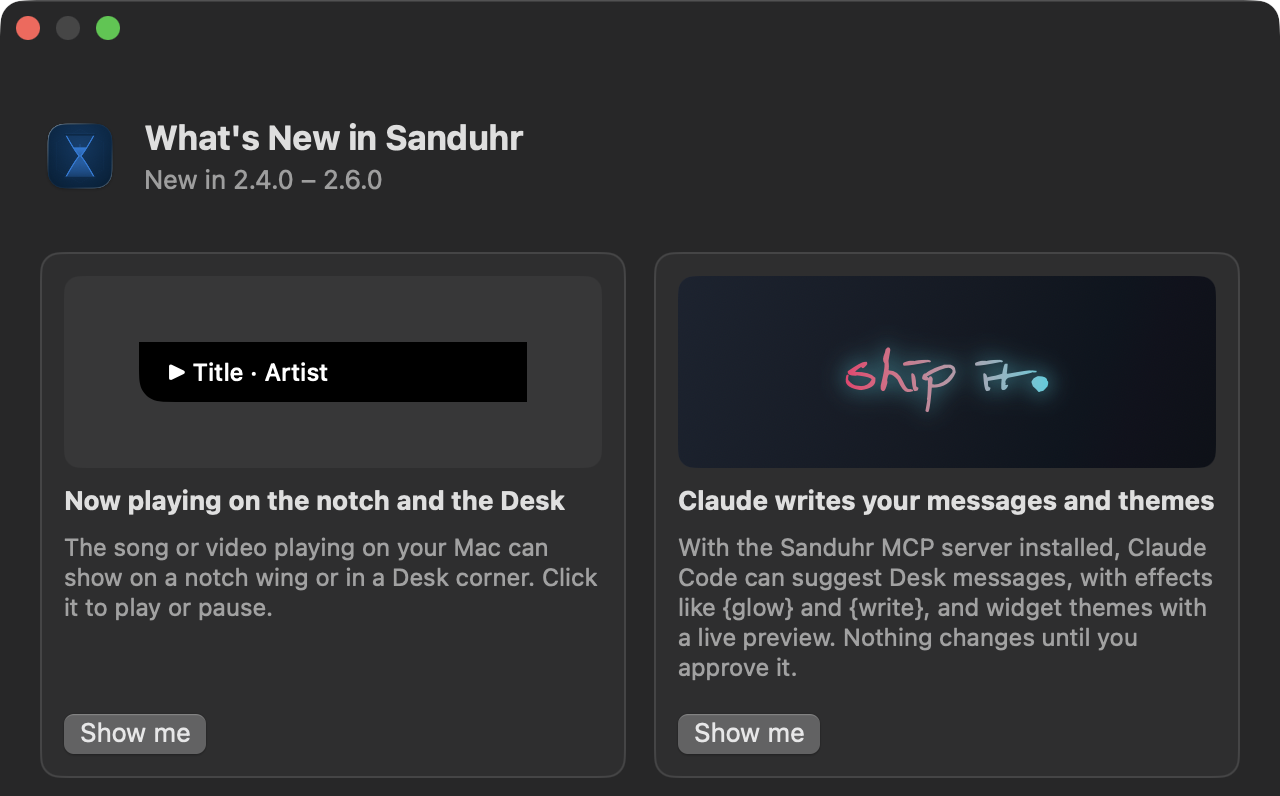
The song or video playing on your Mac, from Spotify, Apple Music, YouTube Music, Pandora or a browser tab, on a notch wing or a Desk corner with a moving position bar. Click it to play or pause. Titles never leave your Mac and are never saved.
Claude Code, from Sanduhr
Settings → Integrations installs your meters above Claude Code's prompt, a statusline, the notch glow when a session needs you, and an MCP server so Claude can ask about your usage. Already have a statusline? Sanduhr can combine its meters with yours, keeping the segments you pick, instead of replacing it. Remove takes out only what Sanduhr added and restores anything it replaced.
Watchers
Small live cards on the notch or the Desk for work in flight: a CI run, a deploy, a long test, with its state, time so far and progress. Agents can put one up through the MCP server, and Claude Code's own background tasks can show up on their own. Both switches are off until you turn them on.
Claude writes your messages and themes
With the MCP server installed, Claude Code can suggest Desk messages, with effects like a glow or a line written in by hand, and propose widget themes as a live preview. Nothing changes until you approve it.
Your usage, per account
Each account chooses what Sanduhr keeps: 30 days of meter history, a local record of its Claude Code sessions (tokens by day, model and project, never what was written), and what Claude may see, off by default. The Claude Usage page shows it as overview, trends and sessions, with CSV export.
The widget, when you want it
Always shown, hidden while Desk is on, or only when you open it. Click the meters and it appears beside them. Deep Work, the Pacing Calculators and Cooldown Snake open from the Tools menu, even with the widget hidden.
Themes you can see
A gallery of every theme, yours included, with a preview of each and one click to apply. Hover one for a line on its look, and your own theme files can carry one too. Match Desk draws the widget in your Desk font and ink, so it reads like part of the desktop.
Smarter alerts, one Settings window
A pace warning when a limit is on course to run out before it resets, quiet hours and a sound of your choice, all off until you turn them on. Every setting sits in one window, Updates and About included, and Option+S opens it while Desk is on.
 626 Labs